Navigate the workbench
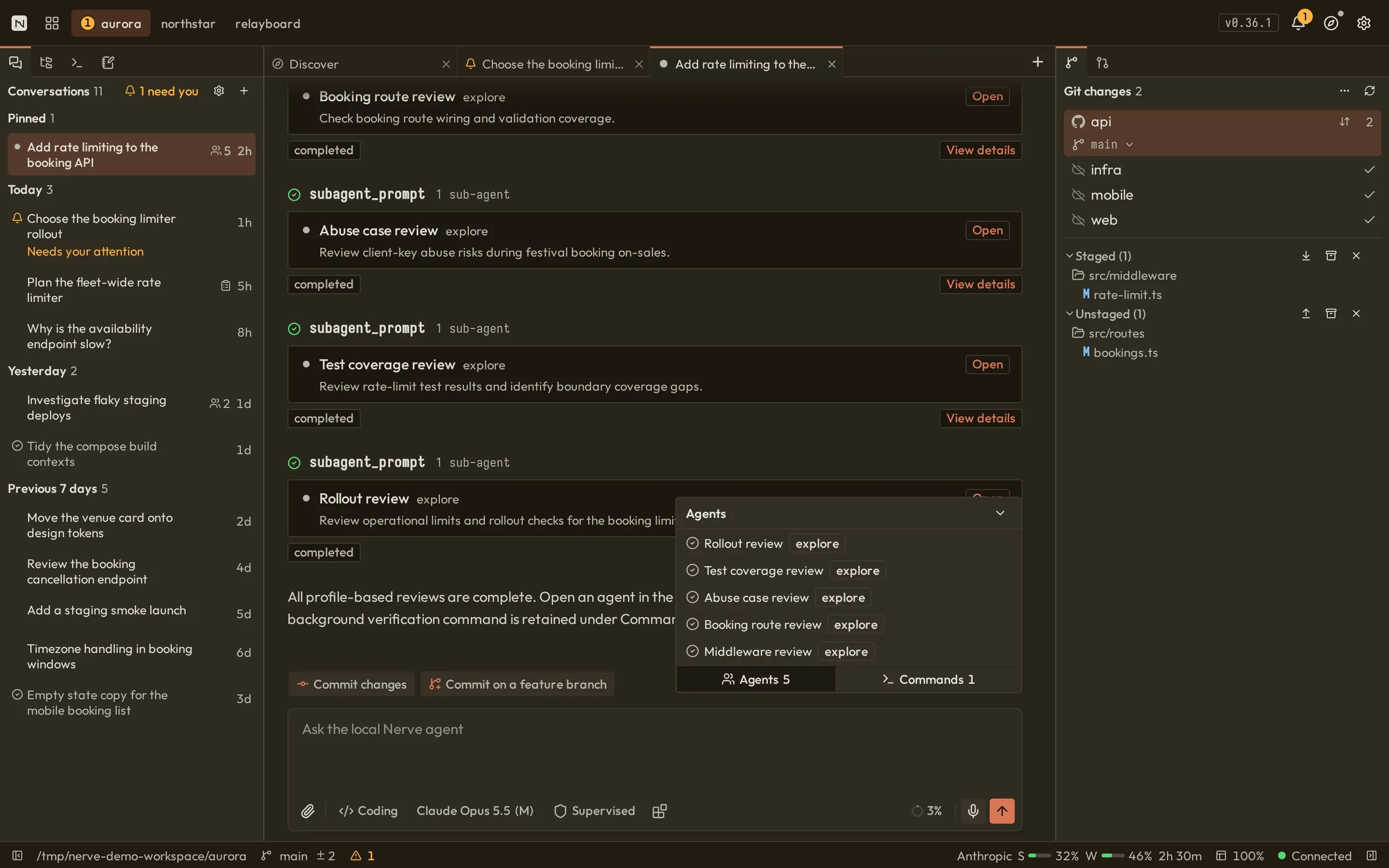
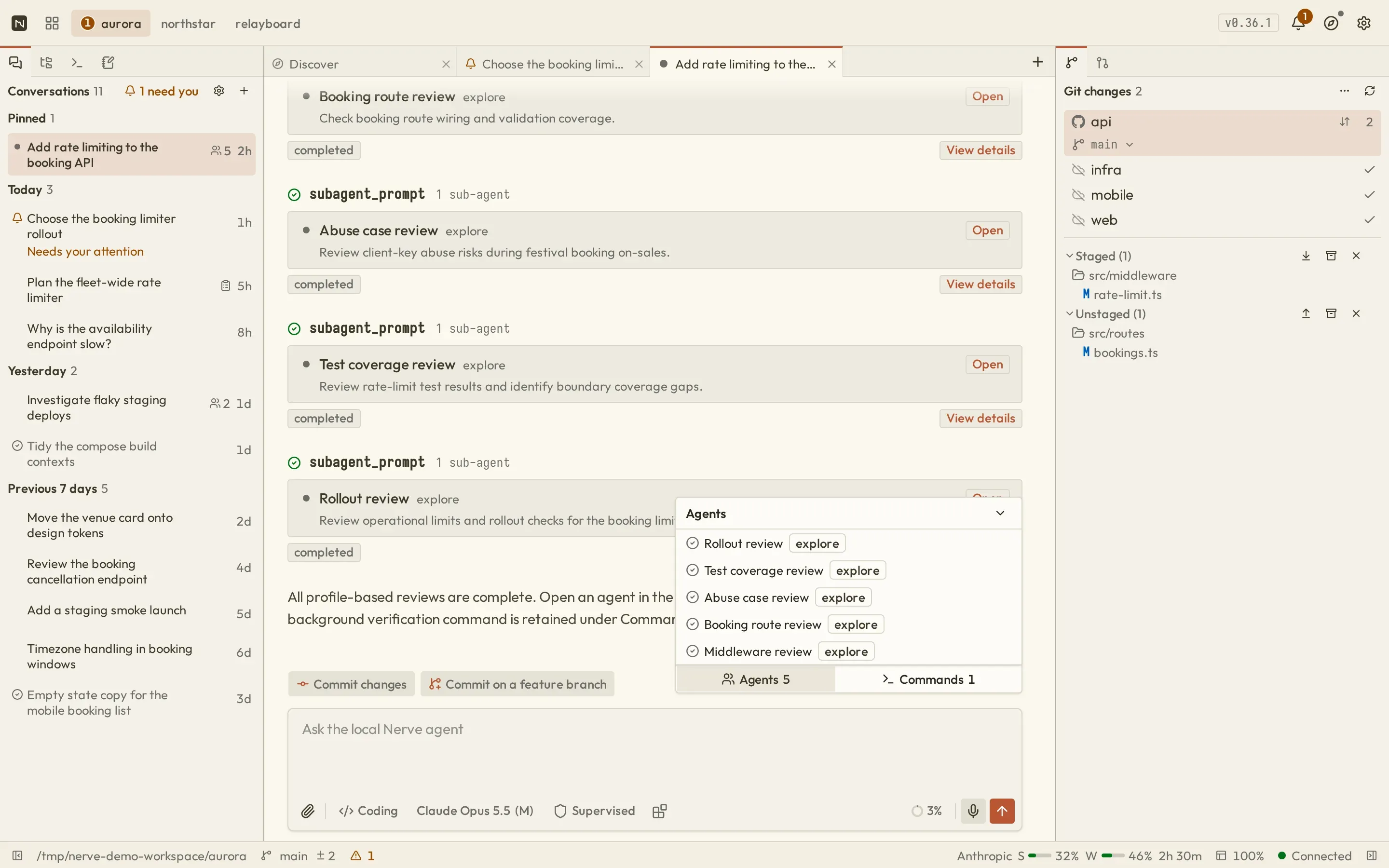
The desktop layout has a conversation/launch dock, a tabbed center workspace, and a secondary dock. Drag resize handles to allocate space. Panel views can move among left, right, and bottom docks or be hidden; Nerve repairs obsolete saved layouts after upgrades. The title-bar Help button opens the built-in Guides catalog, including a full Workbench tour.
Dock views
Section titled “Dock views”Six views can live in docks:
- Conversations, Files, Launches, and Scratch Notes begin on the left.
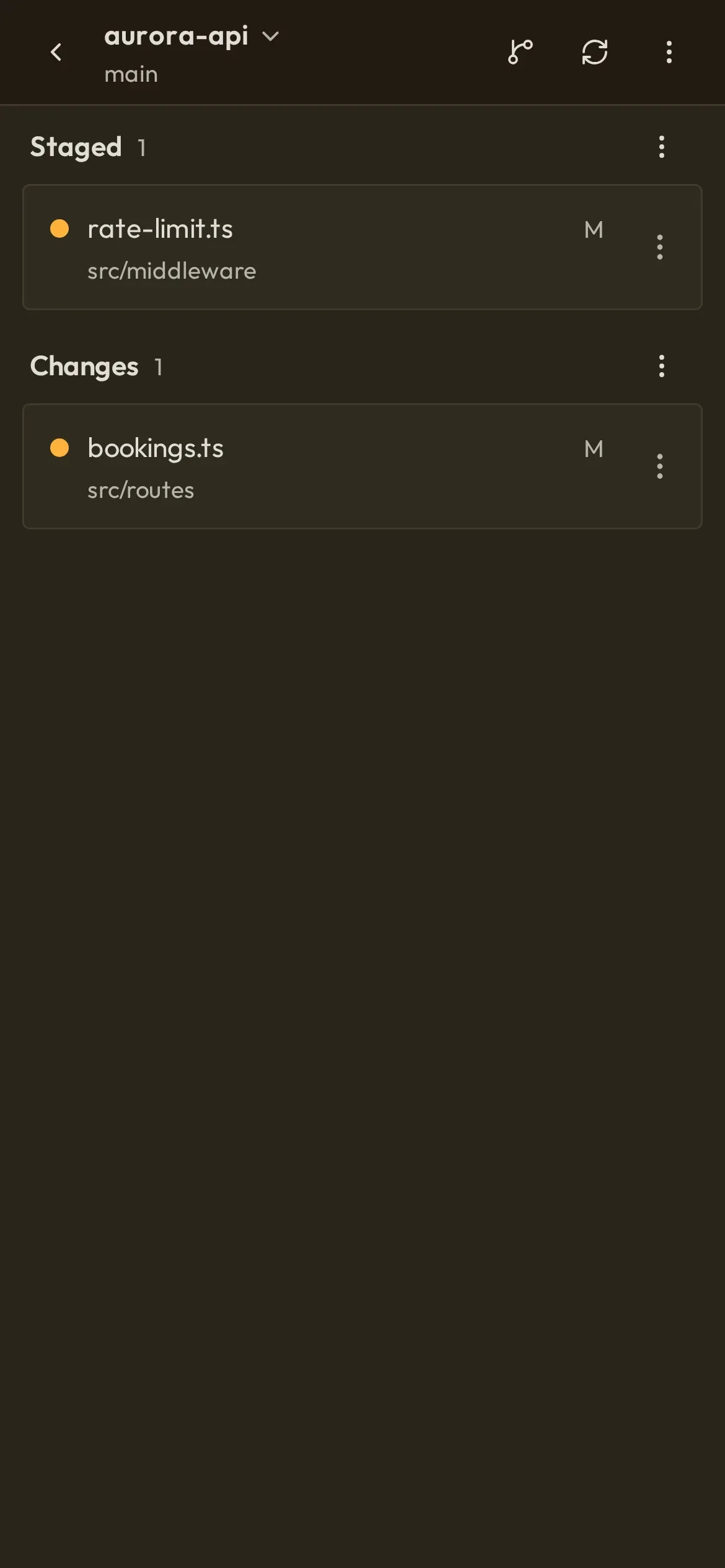
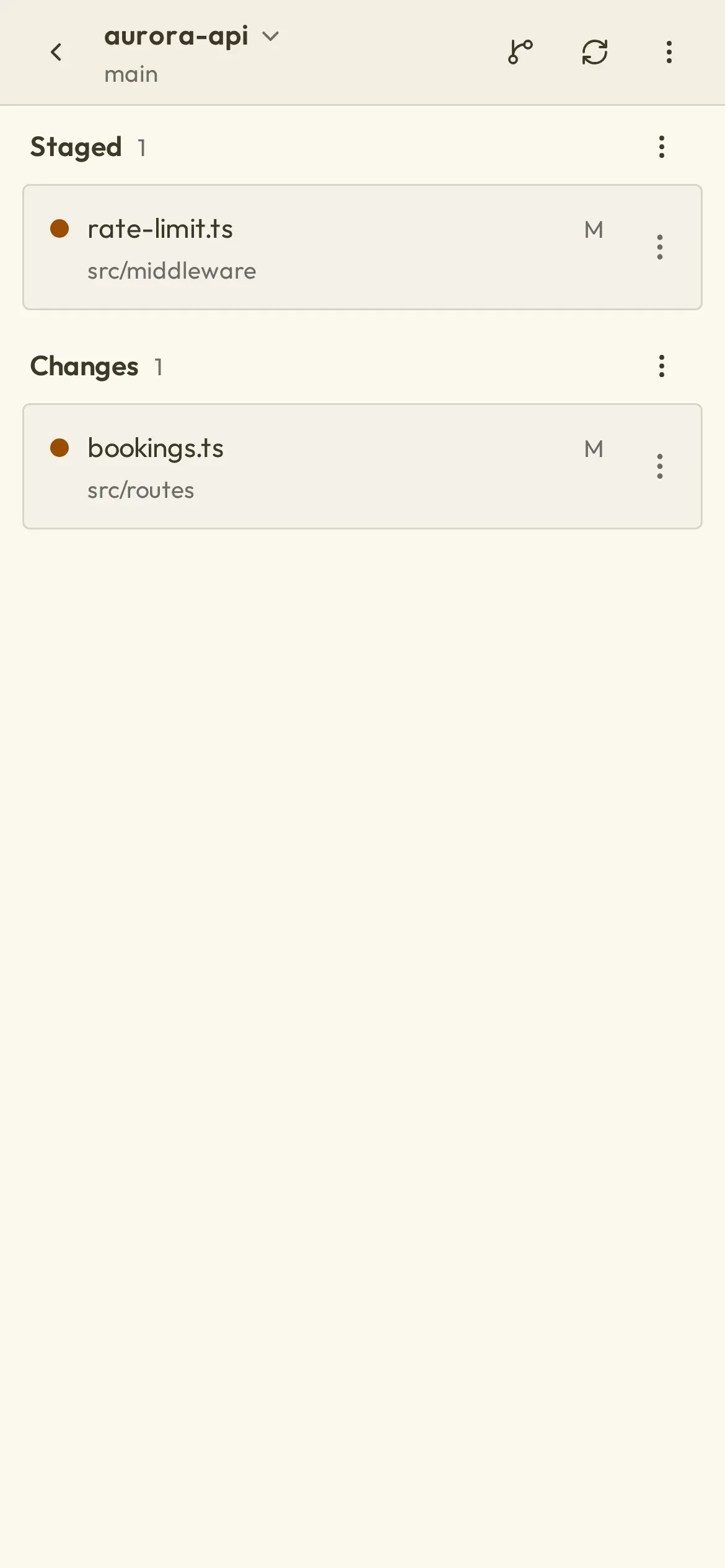
- Git Changes and Pull Requests begin on the right.
Notes are a project panel, not a center tab. Context usage is in the composer popover, not a dock. Panels intentionally adapt to their current width rather than assuming a particular dock.
Center tabs
Section titled “Center tabs”The center workspace opens conversations, pending conversations, launch and background-command output, file previews, pull request details, Settings, authentication, and Nerve logs. Reorder tabs or close the current tab, tabs to either side, or all others. Conversations stay mounted when hidden so live transcript state remains stable.
Switch projects and find work
Section titled “Switch projects and find work”The title bar keeps up to five recent projects in reach on desktop, two in compact layouts, and one on phones. Open the project switcher for the complete recent list. It searches project names and directory paths, supports arrow keys plus Enter or Space, marks the current project, and shows activity from conversations and running launches. Browse for a project opens the full Recent/Browse directory picker for a location that is not already known to Nerve.
Project menus provide shortcuts for a new conversation, an external editor or terminal, conversation pruning, and removing the Nerve project record. Removing a record does not delete the source directory.
Conversation search is a separate modal and filters the selected project’s conversations. The navigator initially bounds long lists and exposes more entries on demand. Switching projects changes the selected scope without deleting server-side conversations or launches.
Header notifications and Activity
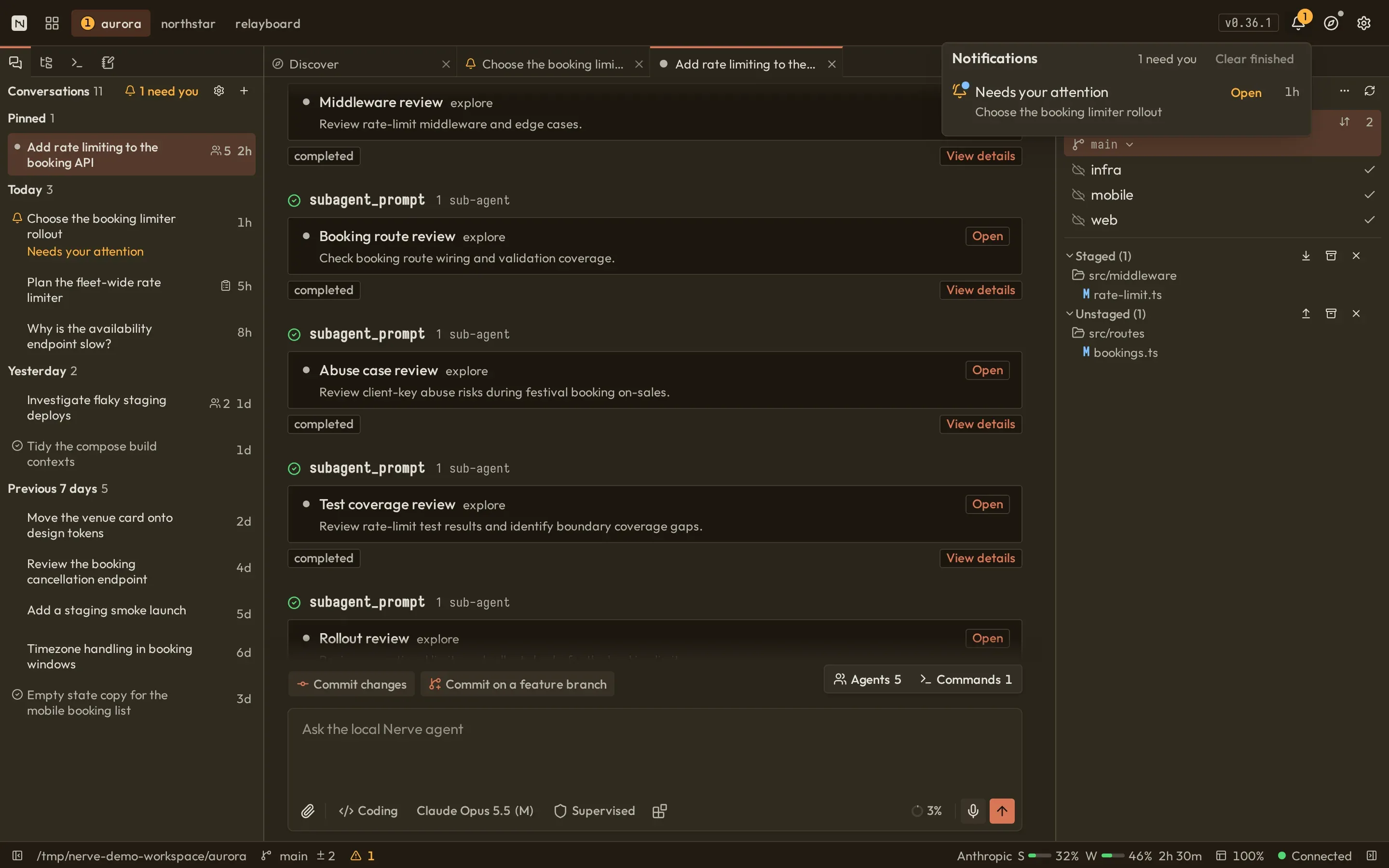
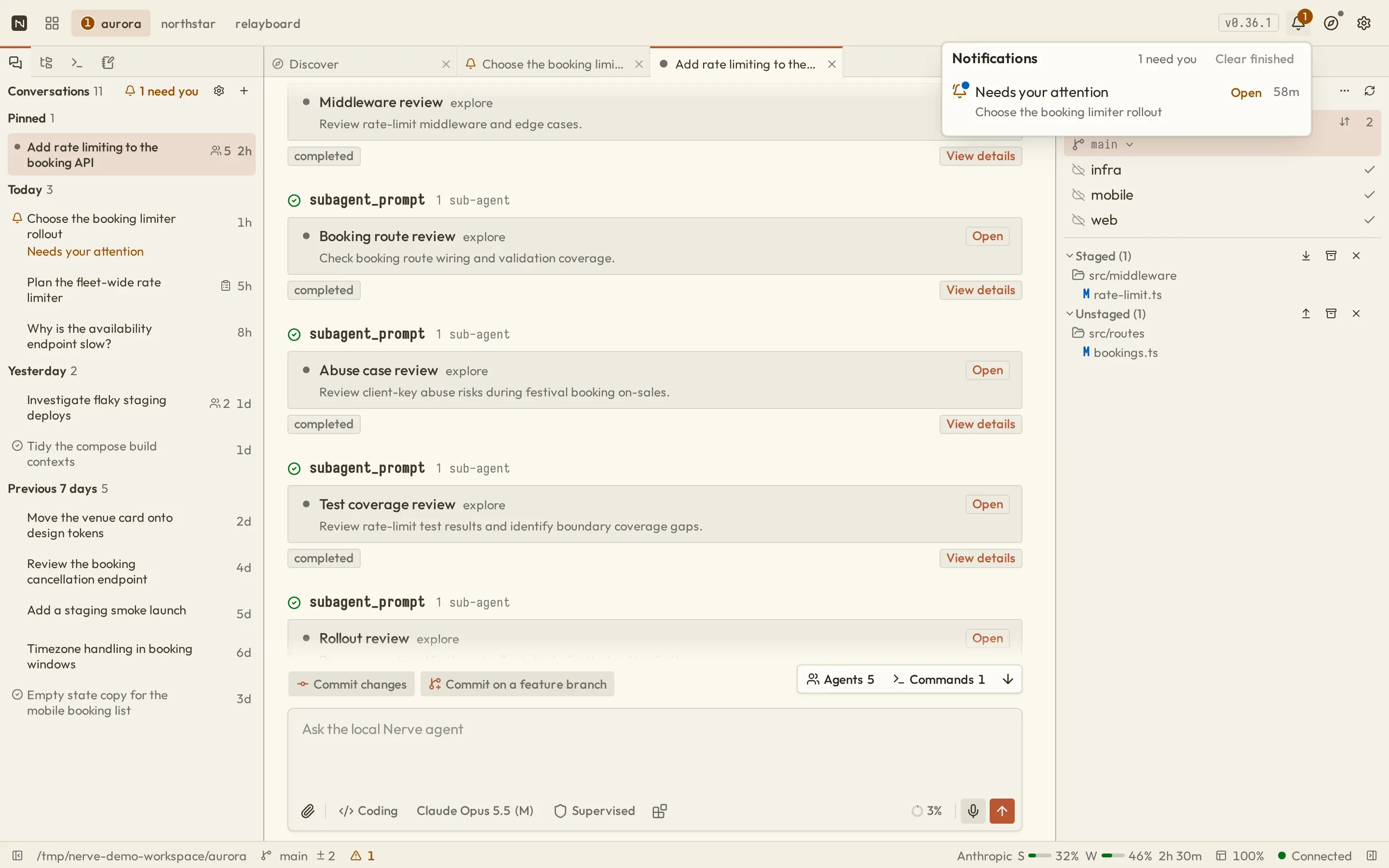
Section titled “Header notifications and Activity”Open the header’s bell (Notifications) to inspect work that needs you, running operations, and finished results. Conversation items take you back to the relevant conversation. Background Git operations report progress and failures here, with cancel or retry actions when supported. Clear finished removes settled entries from the list; it does not undo their effects.
PR views refer to this surface as Activity when a refresh or file load fails. Retry the affected section rather than reopening the whole workbench. This header inbox is separate from the conversation’s Agents and Commands activity island and from operating-system notifications.
Compact layouts
Section titled “Compact layouts”Below 1024px, Nerve switches to a single center column and moves dock views into sheets. Below 640px, a phone-native shell replaces the desktop docks with three primary tabs: Inbox, Projects, and Activity. Open a project from Projects to reach its conversations, workspace tools, Git changes, and pull requests. Conversations and tools open as focused detail screens; Workspace is a section within project home, not a tab.
Layout and active-tab preferences are browser-local. A different browser profile or cleared site storage starts with defaults even though server-side projects and conversations remain.
Built-in tour
Section titled “Built-in tour”Choose Help → Guides → Work through the Workbench for an interactive tour of the composer, review controls, panels, files, Git, launches, providers, Settings, and status. The tour needs an active project and can be replayed after completion.